

Excel works for task lists when your team is small and work is simple. It starts breaking when jobs move between the office, the road, and customer sites all day. For small field teams in the United States, the best Excel task tracker alternative is a shared task board with mobile updates, job details, proof of work, time tracking, and simple reporting.
Key takeaways
- Excel is hard to trust when technicians update jobs by phone, text, and paper notes.
- Small field teams need one place for job status, site notes, photos, time, and follow-ups.
- A good replacement should work well on mobile, not just on a desktop in the office.
- The right setup should reduce missed jobs, duplicate visits, and end-of-day chasing.
- Start with one workflow, one board, and a few simple rules before adding automation.
- TaskSiddhi fits field and service teams that need boards and views, time tracking, field visits, and reporting.
Why Excel stops working for small field teams
Excel is familiar. That is why many small businesses in Chicago, Houston, and Detroit start with it. One sheet tracks jobs. Another tracks technicians. A third tab holds customer notes. It feels cheap and fast at first.
Then the real world shows up.
A dispatcher changes a job time by phone. A tech sends a photo by text. Another worker writes arrival and departure times on paper. A customer asks for a status update. Now the office has four versions of the truth. The sheet is no longer the system. It is just a rough summary that someone tries to update later.
That is the core problem with Excel for field work. Field work changes by the hour. Spreadsheets are static unless someone keeps editing them. Most small teams do not have a full-time coordinator for that.
The issue gets worse as soon as you have:
- 5 to 30 people
- daily site visits
- service jobs with changing schedules
- repeat customers
- proof-of-work requirements
- time spent on site that affects payroll or billing
- managers who need same-day visibility
At that point, an excel task tracker alternative for small field teams is not a nice-to-have. It becomes basic operating infrastructure.
The signs your spreadsheet has become the bottleneck
You probably need to move on from spreadsheets if any of these sound familiar:
- Team members ask for the latest sheet every day.
- The office retypes notes from calls, texts, or paper job cards.
- Technicians do not know which job is highest priority.
- Managers cannot tell what is done until evening.
- Photos and signatures live in phones, not with the job record.
- Time logs are incomplete or guessed later.
- Customers get different answers depending on who they call.
- Reporting takes hours at the end of the week.
These are not spreadsheet training issues. They are workflow issues. The tool no longer matches the job.
What should you use instead?
Use a task board built for active work, not a spreadsheet built for rows and columns. For small field teams, the best replacement usually combines task status, job details, mobile updates, visit proof, and reporting in one place.
That matters because field teams do not just track tasks. They run live jobs. Each job has a location, a customer, a due date, assigned people, notes, parts or materials, site photos, and time spent. A proper system keeps all of that attached to the work item.
The core pieces your replacement needs
Look for these basics first:
1. A visual job board
A board shows work by stage, such as New, Scheduled, In Progress, Waiting, Done, and Billed. That gives managers instant clarity. It also helps the team see what to do next without opening multiple files.
2. Mobile access for the field
If updates happen on customer sites, your team needs a real mobile app. A desktop-only system just creates another delay. Techs should be able to open the job, add notes, update status, and upload photos from the field.
3. Job records, not just task names
A row that says “AC service - Smith” is not enough. The team needs job history, address, contact details, instructions, files, and follow-up notes in one place.
4. Time tracking tied to the job
Time should live with the work, not in a separate document. That helps with payroll checks, billing reviews, and job profitability. It also reduces after-the-fact guessing.
5. Site proof and visit updates
For field teams, proof matters. Photos, notes, timestamps, and visit records make handoffs easier and reduce disputes later.
6. Simple reporting
Owners need to answer basic questions fast. How many jobs closed this week? Which technician is overloaded? Which customer jobs are still waiting? Built-in reporting is far more useful than building weekly spreadsheet pivots by hand.
What does a better setup look like?
A better setup gives your office and field team one shared view of work. Each job lives in one record, moves through a clear status flow, and is updated from the field in real time. That cuts manual follow-up and makes the day easier to manage.
In practice, that means replacing scattered sheets with a board-based workflow. New requests come in. The office assigns them. Techs see their work on mobile. Managers check progress without calling each person. Completed work includes notes, photos, and time on the same record.
A simple example from a U.S. service business
Imagine a 12-person HVAC company in Houston. They handle maintenance calls, emergency repairs, and small install follow-ups. Today, the office uses Excel to assign jobs, a whiteboard for the schedule, and text messages for field updates.
Here is what happens on a busy Tuesday:
- Two emergency calls come in.
- One technician calls out sick.
- A customer asks whether a service report was sent.
- Another job needs a return visit because a part was not available.
- The owner wants to know which jobs can still be billed this week.
In Excel, this becomes a scramble. Someone edits the sheet. Someone else forgets to refresh it. The text thread has the latest customer update, but the sheet does not. By 5:30 PM, the office is still cleaning up records.
In a board-based system, each job moves through statuses. The dispatcher reassigns work. The technician updates the job from the field. The return visit gets logged on the same record. The owner sees what is complete and what is blocked.
That is the real value. Not “better software.” Better control of the day.
Can an ai excel task tool fix this?
No, not by itself. An ai excel task helper may clean up formulas, summarize notes, or suggest task grouping, but it does not solve the field workflow problem. Your issue is not spreadsheet intelligence. Your issue is that updates happen across phones, sites, people, and time.
AI features can help around the edges. For example, they may help summarize job notes or surface overdue items. But they do not replace a system where field staff can update work in one shared place. If the team still depends on office staff to copy updates back into a spreadsheet, the bottleneck remains.
This matters because many owners search for a smarter spreadsheet when they really need a different operating model. If a technician finishes a site visit in Detroit, the key need is not a clever formula. The key need is that the job status, notes, proof, and time update immediately for everyone who needs to see it.
So if you are searching for an excel task tracker alternative for small field teams, focus less on AI inside Excel and more on workflow across your team.
How do you move off Excel without disrupting the team?
Start small. Keep one workflow, one board, and a few required updates. Do not rebuild every spreadsheet at once. The easiest rollout is a simple live board for active jobs, while older records stay where they are until the new process sticks.
Here is a practical way to make the switch.
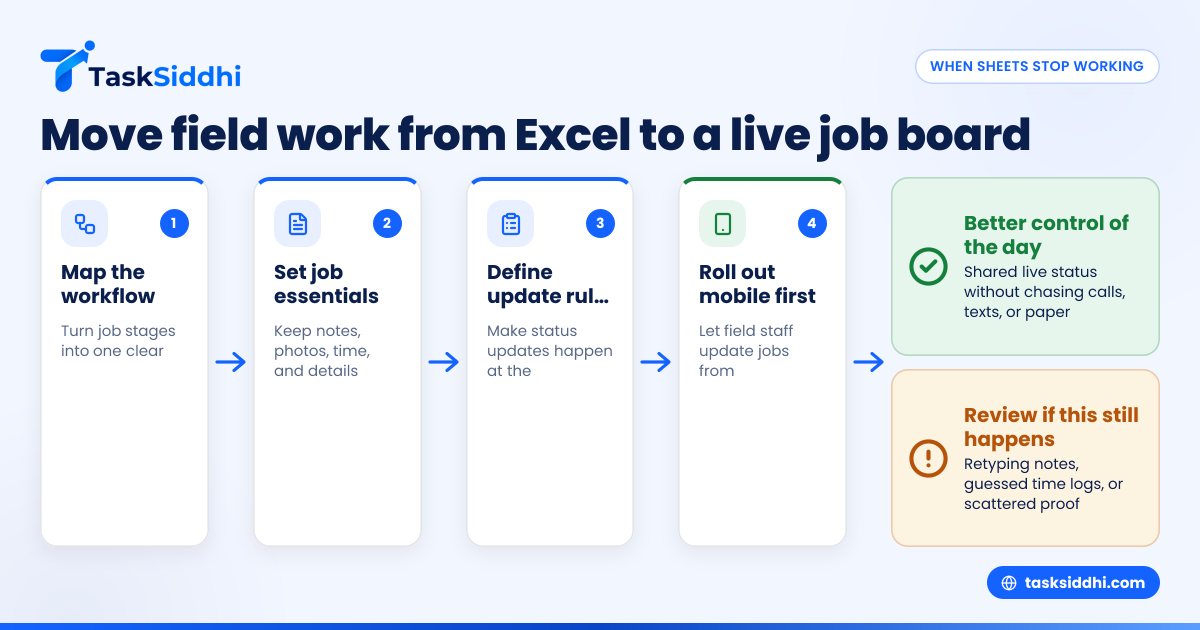
Step 1: Map your current workflow
Write down the stages a job goes through. Keep it simple:
- New request
- Scheduled
- Assigned
- In progress
- Waiting on parts or customer
- Complete
- Ready to invoice
That becomes your board structure. Avoid extra stages unless they change a real action.
Step 2: Decide what every job must contain
Pick the fields that matter every time. For most field teams, that means:
- customer name
- address
- phone number
- job type
- assigned worker
- due date or appointment time
- notes
- photos or documents
- time spent
- completion status
This prevents incomplete job records and reduces back-and-forth later.
Step 3: Set clear update rules
Your team should know exactly when they must update a job. For example:
- when they start travel
- when they arrive on site
- when work begins
- when work is blocked
- when the visit is complete
Without this, any new tool turns into another half-used system.
Step 4: Roll out mobile use first
Field teams adopt new systems when they save time in the field. Start with mobile updates, not office reporting. If workers can update jobs, add photos, and log time from the site, the office gets immediate value.
Step 5: Add reporting only after the workflow is stable
Once your board is working, then review weekly patterns. Which jobs stall? Which workers have too many open tasks? Which customers generate repeat visits? This is where reporting starts to save management time.
What features matter most for U.S. small businesses?
For a U.S. small business, the best features are the ones that support daily operations without adding admin work. You need fast status updates, a clear job history, and records that can support billing and customer communication.
That usually means the following.
Support for field visits and service work
If your team travels to customer locations, the system should support service jobs and field visits directly. You should not have to force-fit site work into a generic to-do list.
Flexible boards and views
Different managers want different views. Dispatch may want a status board. An owner may want a simple filtered list of overdue jobs. A field lead may want only today’s assignments. Boards and views help each person see the same work in the right format.
Time tracking and reporting
Teams often need time records for payroll checks, customer billing, or simple labor review. Time tracking reduces the need for memory-based estimates at the end of the week.
Automation for repetitive handoffs
Once your process is stable, simple automation can help move work along. For example, a completed site visit may trigger the next internal review step. The point is not complexity. The point is reducing repetitive office follow-up.
A clear path from free trial to paid use
Small teams should test the workflow before rolling it out fully. If you are comparing tools, it helps to understand the difference between free vs paid plans and what limits might affect your rollout.
How much should an Excel replacement cost?
The right cost is the one that saves more admin time and missed-work cost than it adds in software fees. For most small field teams, the bigger expense is not the subscription. It is the wasted office time, billing delay, and rework caused by bad handoffs.
A common mistake is comparing software cost to “free” spreadsheets. Excel is not free when the owner spends two hours every Friday fixing records. It is not free when a missed update leads to a repeat truck roll. It is not free when billing slips because time logs are incomplete.
Think in operational savings, not just subscription price
Look at costs like these:
- office hours spent updating sheets
- technician calls for missing job details
- return visits caused by poor notes
- billing delays from incomplete job records
- customer frustration from unclear status updates
Even one avoided repeat visit can matter. If a truck roll costs your business $75 to $200 in labor and overhead, a few preventable mistakes each month can outweigh the software cost fast.
The exact price depends on team size and needed features. The more useful question is this: will the tool reduce avoidable admin work and help jobs move faster? If yes, it is worth serious consideration.
How to choose the right Excel alternative for your team
Do not choose based on the biggest feature list. Choose based on whether your team will actually use it every day.
Ask these practical questions
- Can a field worker update a job in under a minute?
- Can the office see job status without calling the technician?
- Can every job hold notes, files, photos, and time in one place?
- Can you filter work by person, priority, or due date?
- Can you see what is blocked right now?
- Can you get useful reports without exporting data to another sheet?
If the answer is no to most of these, you are probably buying another workaround.
Keep setup simple
Your first version should be boring. That is a good thing. One board. Clear statuses. A handful of job fields. A simple mobile process. A weekly review. Complexity can come later if it earns its place.
TaskSiddhi is built for teams managing active work, not just storing tasks. If you need one place for features, live job tracking, mobile updates, and work records for client work or field operations, it is worth a look.
Common mistakes when replacing Excel
Many small businesses know they have outgrown spreadsheets. The switch still fails because they try to copy every old habit into the new tool.
Mistake 1: Rebuilding the spreadsheet exactly
If you recreate ten tabs, color codes, and custom side notes, you bring the old mess with you. Use the move as a chance to simplify.
Mistake 2: Tracking too much on day one
Do not launch with 40 fields and 12 statuses. Start with the data your team truly needs to complete work and hand it off.
Mistake 3: Skipping manager habits
Managers must use the system too. If supervisors still rely on calls and private notes, the team will ignore the new process.
Mistake 4: Forgetting the field experience
A tool can look great in the office and fail in the field. If mobile updates are slow or confusing, adoption drops quickly.
Mistake 5: Waiting for perfect data before starting
You do not need a perfect import to begin. Start with active jobs and current customers. Improve data quality as the process stabilizes.